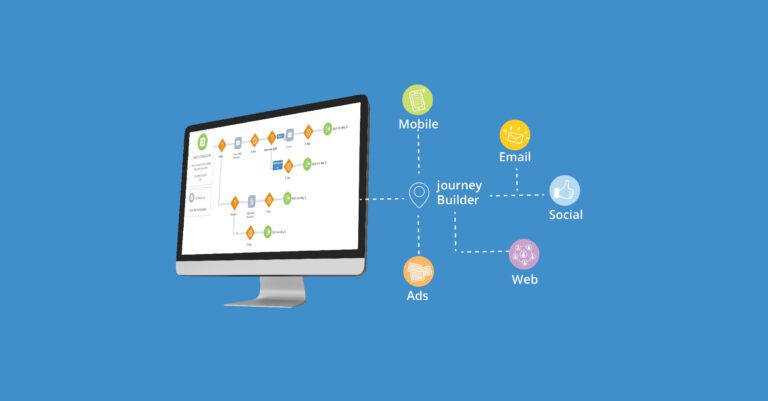

A Journey Builder entry source defines which contacts enter a journey, when they enter, and what data travels with them. Salesforce Marketing Cloud supports several entry sources: Data Extension, Salesforce Data, API Event, Data Cloud Data Actions, CloudPages, Event, and Inbound Chat (WhatsApp). Choosing the right one determines whether your journeys fire in real time or as a batch, and whether contacts come from your CRM, your website, or a unified Data Cloud segment.
This guide walks through each entry source with a focused setup guide for the Salesforce Data entry source, which triggers journeys directly from activity in Sales Cloud or Service Cloud.
What Is an Entry Source in Salesforce Journey Builder?
An entry source is the starting trigger of every journey in Salesforce Marketing Cloud Engagement. It tells Journey Builder where to pull contact data from and what event or schedule admits a contact into the journey canvas.
When a contact enters a journey, Journey Builder takes a snapshot of their data at that exact moment. This is called entry data. It stays fixed for that contact throughout the journey. You can compare it against live contact data later using decision splits or personalisation strings, but the snapshot itself does not update.
Three questions help you pick the right entry source:
- Where does your contact data currently live?
- Should contacts enter one at a time in real time, or in a scheduled batch?
- What triggers the entry: a CRM update, a date, a behaviour, or an event from an external system?
Salesforce Data Entry Source in Journey Builder
The Salesforce Data entry source connects Journey Builder to your Sales Cloud or Service Cloud CRM. It triggers a journey automatically when a Salesforce record is created or updated — for example when a lead is added, a case is opened, or a contact is added to a campaign.
This is the most direct way to connect CRM activity to a marketing journey. When something changes in your sales or service operations, the journey fires without any manual step.
What You Need Before Configuring the Salesforce Data Entry Source
- Marketing Cloud Connect must be set up to link your Marketing Cloud account to Sales Cloud or Service Cloud.
- At least one Salesforce object must be available as the trigger: Lead, Contact, Case, User, Campaign Member, Person Account, or a custom object.
- The contact entering the journey must have a valid email address and a field that can serve as the subscriber key.
How to Configure the Salesforce Data Entry Source Step by Step
Step 1: Select the entry source. In Journey Builder, create a new multi-step journey. On the canvas, click the entry source tile and choose Salesforce Data from the available options.
Step 2: Choose the Salesforce object. Select the object that will trigger the journey. Common options are Lead, Contact, Case, and Campaign Member. Custom objects are also available if configured in your org.
Step 3: Choose who enters the journey. Select the ID field that identifies the person being injected — for example, Lead ID. This becomes the subscriber key in the data extension Journey Builder creates. This cannot be edited after saving. To change it, delete the entry source and create a new one.
Step 4: Set the trigger condition. Choose whether the journey triggers when a record is created, updated, or both. Enable specific event criteria if you only want records meeting defined conditions to enter — for example, leads with status Qualified only.
Step 5: Add attribute filters (optional). Filter by fields from the object or related objects to narrow which records qualify. For example, filter by lead source, case priority, or campaign name.
Step 6: Confirm email and phone mapping. In the journey settings, verify the correct email address and phone number fields from the entry source are mapped. Journey Builder uses these to send communications.
Salesforce Data Entry Source: Key Behaviours and Limitations
- Journey Builder automatically creates a data extension under Email Studio when the journey is saved and validated. It contains the object fields you selected.
- Records can only be added to this data extension, not updated. If the same record triggers entry multiple times, duplicates are possible.
- If your Salesforce org connection changes, every journey using this entry source must be deleted and recreated.
- Entry sources are reusable. One entry source can be referenced across multiple journeys.
- Best for: Real-time one-to-one communications — welcome emails when a lead is created, follow-ups when a case is resolved, reminders when a contact joins a campaign.
- Not ideal for: Large batch sends with complex personalisation across multiple data objects. For those, use a pre-segmented Data Extension entry source instead.
Data Extension Entry Source in Journey Builder
The Data Extension entry source is the most widely used option in Journey Builder. It works when your contact data is already stored inside Marketing Cloud and you need to run a scheduled or recurring campaign.
You can schedule how often Journey Builder checks the data extension for qualifying contacts: daily, weekly, monthly, or at a custom interval. You can also apply filters inside the entry source to control exactly which records are admitted without needing to modify the data extension itself.
- Best for: Welcome series, re-engagement campaigns, newsletters, promotional sends — any scenario with pre-segmented contact data inside Marketing Cloud.
- Not ideal for: Real-time one-to-one triggers. Use an API Event or Salesforce Data entry source when a contact needs to enter the moment something happens.
One important practice: do not use the same data extension to power multiple active journeys at the same time. Create a pre-filtered copy for each journey. Sharing a data extension across journeys can cause contacts to be processed incorrectly and lead to duplicate communications.
API Event Entry Source in Journey Builder
The API Event entry source handles real-time, one-to-one triggers from an external system or website not directly integrated with Marketing Cloud. When you create an API Event entry source, Journey Builder generates an event definition key. You share this key with the external system, which uses it in an API call to inject a single contact into the journey the moment an event occurs.
- Best for: Purchase confirmations, password resets, account creation notifications — any transactional message that needs to fire immediately after an external event.
- Not ideal for: Batch sends. The API processes one record at a time and is not designed for bulk entry.
If your use case grows beyond a single send, API Event Journeys have a clear advantage over traditional Triggered Sends. You can layer in multi-step flows, decision splits, and engagement-based paths without rebuilding the send definition from scratch.
Data Cloud Data Actions: Triggering Journey Builder from Unified Salesforce Data
Data Cloud can now trigger Journey Builder journeys in near real time through Data Actions. This is the most significant recent addition to Journey Builder’s entry source capabilities.
Here is how it works: you define a segment in Data Cloud using unified customer data from across your Salesforce org. You configure a Data Action on that segment that fires when a contact enters or exits it. The Data Action injects that contact into a Journey Builder journey along with the data attributes defined in the action.
Previously, getting Data Cloud audiences into Journey Builder meant exporting a segment to a data extension and running a scheduled batch entry. Data Actions closes that gap to near real time, which is meaningful for behaviour-driven marketing where timing matters.
- Best for: Journeys that respond to changes in a contact’s unified profile — a loyalty tier change, a move from active to at-risk status, or real-time purchase signals across channels.
If you are using Marketing Cloud Next, journey history can also be imported into Data Cloud and used as a segment filter, creating a feedback loop between journey outcomes and future audience building. Learn more about Salesforce Data Cloud and how Cloud Odyssey implements it.
CloudPages Entry Source in Journey Builder
The CloudPages entry source injects a contact into a journey when they submit a Smart Capture form hosted on a CloudPage. It suits immediate follow-up after a form submission.
- Best for: Post-submission confirmation sequences and lead nurture triggered directly by a landing page form.
- Worth noting: If you want the contact record to exist in Salesforce before the journey fires, CloudPages is not the right choice. Creating the record in Salesforce first and using the Salesforce Data entry source gives you a Contact ID as the subscriber key, which is the more reliable approach for long-term data consistency.
Event Entry Source in Journey Builder: Date-Based Triggers
The Event entry source handles date-based journey triggers. It evaluates contacts against a date attribute stored in Contact Builder and admits them when the condition is met.
- Common uses: Birthday campaigns, contract renewal reminders, subscription anniversaries, and any journey that fires on a specific date relative to a contact.
- Requirement: Contacts must already exist in Marketing Cloud with the relevant date attribute correctly populated in Contact Builder before the journey runs.
Inbound Chat Entry Source in Journey Builder (WhatsApp)
The Inbound Chat entry source admits a contact into a journey when they send a message to your WhatsApp Business channel containing one of your configured trigger keywords. You can configure up to 10 keywords per entry source. It requires the Chat Messaging Setup app to be installed and configured in your Marketing Cloud account.
WhatsApp has become a high-performing engagement channel in Marketing Cloud Engagement, particularly in India, Brazil, and Southeast Asia where it is the dominant messaging platform. It consistently delivers open rates and response rates well above email averages.
What Has Changed Recently in WhatsApp Journey Builder Integration
- Salesforce introduced a WhatsApp Intelligence Dashboard that shows deliverability, open rates, and response metrics for WhatsApp sends directly inside Marketing Cloud.
- A recent Marketing Cloud release added support for Meta’s latest marketing APIs for WhatsApp, improving campaign execution and deliverability rates.
- Two-way conversational journey capabilities have been extended, going beyond outbound template sends to support customer-initiated conversation flows.
What to Know Before Setting Up WhatsApp Inbound Chat Journeys
- WhatsApp requires explicit opt-in from every contact before any message can be sent. You are responsible for collecting, storing, and honouring opt-in data.
- Outbound template messages must be reviewed and approved by Meta before use. Once approved they cannot be edited. If you need changes, a new template must be submitted for approval.
- WhatsApp data extensions require three specific fields: Subscriber Key, Phone (data type: Phone), and Locale (data type: Locale). This differs from email data extensions and is a common setup error.
- Marketing Cloud charges per WhatsApp message sent. Always configure your journey to exclude opted-out contacts to avoid unnecessary spend.
Journey Decisioning Agents: AI-Powered Decisions Inside Journey Builder
A recent Marketing Cloud Engagement release introduced Journey Decisioning Agents via Agent Builder. These replace static decision splits with AI agent reasoning — instead of a fixed rule deciding which path a contact follows, an agent evaluates the contact’s data and selects the most appropriate path dynamically.
This is an early step toward bringing Agentforce into the journey canvas. It is part of Salesforce’s broader direction to connect Journey Builder with the Flow engine and Data Cloud so journeys can coordinate across Sales, Service, and Marketing Cloud without manual logic updates.
Read more in our guide to Salesforce Agentforce and how it connects across the Salesforce platform.
Which Journey Builder Entry Source Should You Use?
Here is a quick reference for common marketing scenarios:
- A lead or contact record is created or updated in Salesforce CRM: Salesforce Data entry source
- A customer completes a purchase or form on your website: API Event
- You have a unified audience or segment built in Data Cloud: Data Cloud Data Actions
- A scheduled or recurring email to a Marketing Cloud contact list: Data Extension
- A birthday, renewal, or anniversary campaign: Event
- Follow-up from a CloudPage Smart Capture form: CloudPages
- A customer sends a WhatsApp keyword message to your business: Inbound Chat
Frequently Asked Questions
What is the Salesforce Data entry source in Journey Builder?
The Salesforce Data entry source connects Journey Builder to Sales Cloud or Service Cloud. It triggers a journey when a CRM record is created or updated, such as when a lead is added, a case is opened, or a contact joins a campaign. Marketing Cloud Connect must be configured between your Marketing Cloud and Salesforce accounts before you can use it.
What is the difference between a Data Extension entry source and the Salesforce Data entry source in Journey Builder?
A Data Extension entry source uses contact data already stored inside Marketing Cloud and suits batch or scheduled sends. The Salesforce Data entry source is triggered by activity in your CRM in real time, admitting contacts one at a time when a record is created or updated in Sales or Service Cloud.
Can Data Cloud trigger a Journey Builder journey?
Yes. Data Cloud can trigger Journey Builder journeys in near real time through Data Actions. You configure a Data Action on a Data Cloud segment that fires when a contact enters or exits the segment, which then injects them into a Journey Builder journey with their data attributes.
Is Audience Studio still available as a Journey Builder entry source?
No. Audience Studio has been retired. The recommended replacement for audience building and activation in Journey Builder is Data Cloud.
Can I change the object or subscriber key after saving a Salesforce Data entry source?
No. Once a Salesforce Data entry source is saved, the selected object and ID field cannot be changed. To use a different object or subscriber key, you must delete the entry source and create a new one.
What is the Inbound Chat entry source in Journey Builder?
The Inbound Chat entry source is for WhatsApp journeys. It admits a contact when they send a message to your WhatsApp Business channel containing one of up to 10 configured trigger keywords. It requires WhatsApp Chat Messaging to be set up in Marketing Cloud and explicit opt-in from every contact before messages can be sent.
What entry source should I use for a birthday or renewal campaign in Journey Builder?
Use the Event entry source. It evaluates contacts against a date attribute stored in Contact Builder and admits them when the date condition is met. Contacts must exist in Marketing Cloud with the relevant date attribute correctly populated before the journey runs.
What are Journey Decisioning Agents in Salesforce Marketing Cloud?
Journey Decisioning Agents are AI-powered agents configured via Agent Builder that make path decisions inside an existing Journey Builder journey. Instead of a fixed decision split rule, an agent evaluates the contact’s data and selects the most appropriate path dynamically. This is part of Salesforce’s work to bring Agentforce capabilities into the marketing automation layer.
Conclusion
The entry source shapes everything that follows in a Journey Builder journey. The Salesforce Data entry source is one of the most powerful options for teams managing customer relationships in Salesforce CRM, enabling journeys to fire in real time from CRM activity without manual work.
The biggest recent shift is the Data Cloud Data Actions integration, which brings near real-time, behaviour-driven journey triggering to teams who have unified their customer data in Data Cloud. If you are still moving audiences into Journey Builder through scheduled batch exports, Data Actions is worth exploring as a next step.
If you need help setting up Journey Builder, configuring Marketing Cloud Connect, or integrating Data Cloud into your journeys, Cloud Odyssey can help.