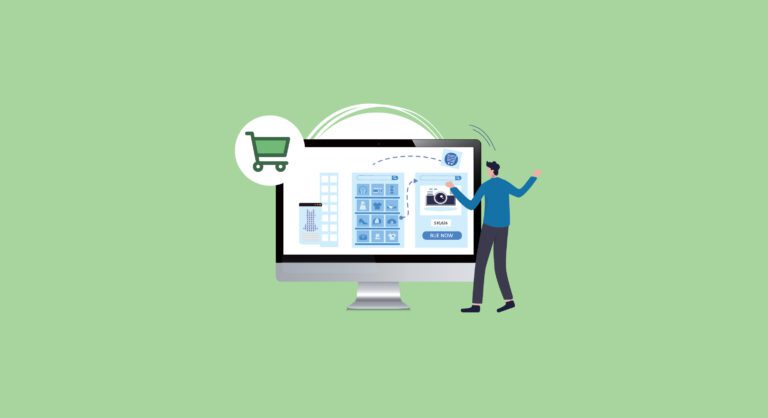

Quick answer: Salesforce Commerce Cloud Page Designer is the drag-and-drop visual editor inside Business Manager that lets merchandisers build and publish storefront pages, such as homepages, category landing pages, and campaign pages, without writing code. Salesforce rebranded Commerce Cloud as Agentforce Commerce at Dreamforce 2025, and B2C Commerce is now formally called Agentforce Commerce for B2C in Salesforce’s own documentation. Page Designer itself hasn’t gone away; it has picked up new capabilities, including support for the React-based Storefront Next architecture, reusable content blocks, and Agentforce-assisted content creation.
If your team still thinks of this feature by its 2016-era description, this guide brings it current: what it does today, what’s changed under the hood, and where it fits inside the wider Agentforce Commerce platform.
What Is Salesforce Commerce Cloud Page Designer, and Why Was It Renamed?
Page Designer launched in 2016 as a low-code answer to a familiar retail problem: marketing teams needed to update storefront content constantly, but every change required a developer ticket. Salesforce built Page Designer so merchandisers could assemble pages from prebuilt components directly in Business Manager, cutting the wait between an idea and a live page.
In October 2025, Salesforce folded Commerce Cloud into its company-wide Agentforce rebrand, alongside Sales Cloud, Service Cloud, and Marketing Cloud. The platform is now marketed as Agentforce Commerce, and the B2C product line is Agentforce Commerce for B2C. Salesforce’s own Trailhead content confirms the shift directly, noting that references to “Commerce Cloud” and “B2C Commerce” still appear throughout existing documentation and Business Manager, even as the official name has changed.
For day-to-day work, the practical impact is small. Page Designer lives in the same place in Business Manager, uses the same underlying page-type, region, and component model, and supports the same SFRA cartridges most implementations already run on. What has changed is the surrounding platform: Page Designer is now one part of a broader push toward AI-assisted merchandising and agent-led shopping experiences.
Page Types, Regions, and Components: The Building Blocks of Page Designer
Every Page Designer page is built from three core concepts, and understanding how they relate makes everything else in this guide easier to follow.
- Page type: defines the overall purpose and structure of a page (homepage, category landing page, campaign page). Developers create page types; merchandisers use them.
- Regions: containers nested inside a page type that hold components. Regions can be limited to a maximum number of components or restricted to exclude certain component types, giving developers control over how a page can be assembled.
- Components (assets): the modular content blocks that populate a region: banners, product tiles, category tiles, forms, videos, or custom HTML. Components are reusable across pages, which is where most of the time savings come from.
A Page Designer page is, at its core, an HTML page assembled from these three layers and rendered to the shopper’s browser, whether they’re on desktop, tablet, or phone.
Core Features of the Page Designer Visual Editor
The feature set that made Page Designer popular with merchandising teams is still the foundation of the tool:
- Drag-and-drop assembly: place, reorder, and configure components without a developer.
- Component library: a working set of prebuilt components (banners, product grids, forms, category tiles) that developers can extend with custom types.
- Device and locale preview: check how a page renders on desktop (1280×1024), tablet (768×1024), and phone (375×667), and preview content by locale before it goes live.
- Scheduling and audience targeting: control when a page or component is visible, and to which customer group.
- SEO configuration: set page-level SEO metadata and choose whether a page is included in the sitemap and searchable on the storefront.
- Content reuse: build a component once, reuse it across multiple pages and campaigns.
None of this requires the shopper-facing complexity most people associate with commerce platforms. That’s the point. A merchandiser designs the page in Business Manager, previews it, and publishes it, with a developer only needed to build new page types or component types.
What’s New in Page Designer Under Agentforce Commerce (2026 Updates)
This is where the 2023-era description of Page Designer stops matching reality. Several changes have landed through Salesforce’s 2026 B2C Commerce releases:
Storefront Next support. Salesforce’s June 2026 release brought Storefront Next to General Availability, a React-based, AI-first storefront architecture built for faster implementations. Page Designer now has native support for Storefront Next, including out-of-the-box page templates, React components, and an integrated storefront preview, so merchandisers get the same visual editing experience regardless of which frontend architecture a business runs.
Content Blocks. Merchandisers can now save a Page Designer component or an entire page composition as a reusable content block and manage it from a central workspace in Business Manager, with search, filtering, and bulk actions across pages. Salesforce’s July 2026 release extended this with site-wide content blocks (currently in beta for Storefront Next), letting teams publish a single header banner or sitewide message across an entire site and preview the change directly inside Page Designer.
Agentforce-assisted content management. Business Manager now includes natural-language tools that let merchandisers automate parts of the content workflow, part of Salesforce’s broader push to put Agentforce actions inside day-to-day merchandising tasks.
Merchandising precision. Recent releases added category slicing and product-variation management from individual product cards, upgraded A/B testing controls with rank and priority settings, and time-zone-aware campaign scheduling to reduce publishing errors.
Shopper Agent context. Salesforce’s Shopper, Buyer, and Merchant Agents reached general availability in mid-2026, with native integrations into ChatGPT and Google Search. Pages and content built in Page Designer now feed into a storefront experience where an AI agent can also act on a shopper’s behalf, which raises the stakes on getting page structure, product data, and SEO settings right. An agent surfacing a product depends on the same underlying content a human shopper would see.
If your Page Designer implementation predates 2026, it’s worth a health check against these updates before your next campaign cycle. This is exactly the kind of gap our Salesforce Commerce Cloud implementation team gets called in to close.
How to Create a Page in Business Manager: Step-by-Step
- Open Merchant Tools. Log in to Business Manager and navigate to Merchant Tools > Content > Page Designer.
- Start a new page. Click New, and choose a page type: Homepage, Category Landing, or a custom type your developers have built.
- Name the page. Provide a page Name and an ID (used as the URL suffix), then continue.
- Review and create. Confirm the details and select Save and Create. Business Manager opens the new, empty page in edit mode.
- Add components. Click the plus icon in a region to open the component picker, then configure each component’s content, images, and links.
- Preview across devices and locales. Use the built-in preview to check the page on desktop, tablet, and phone, and by customer group or scheduled date.
- Publish. Click Publish in the top right corner once the page is ready to go live.
- Access the page. Open it using the storefront’s Page-Show URL pattern, replacing the page ID with your page’s own ID.
Building a Custom Page or Asset: What Developers Need
Merchandisers work inside the visual editor; developers define what merchandisers can build with. A typical custom page or asset in an SFRA-based implementation still follows this pattern:
- Template file (
customPage.isml): defines the page’s markup structure. - Attributes file (
customPage.json): declares the page’s configuration options, including region definitions. - Render script (
customPage.js): the JavaScript logic that renders the page using the page’s context.
Two attributes worth knowing inside a region definition:
component_type_exclusions: component types that a region should not allow.max_components: the maximum number of components a region can hold.
The same three-file pattern applies to custom assets (customAsset.isml, customAsset.json, customAsset.js). In typical SFRA cartridges, you’ll find page and asset templates under /cartridges/app_storefront_base/cartridge/templates/default/experience/pages, components under /cartridges/app_storefront_base/cartridge/templates/default/experience/components, and the Page Designer rendering logic under /cartridges/app_storefront_base/cartridge/experience. Styling lives in the SCSS and JS folders under the storefront’s client/default/experience directories. Exact paths can vary between reference architecture versions and Storefront Next implementations, so confirm against your own cartridge structure before editing.
Component Attribute Types
When defining what a merchandiser can configure on a component, developers choose from a fixed set of attribute types:
| Attribute Type | What It Represents | Editor Control |
|---|---|---|
| boolean | True/false value | Checkbox |
| category | Catalog category ID | Category picker |
| cms_record | A record from Salesforce CMS | Modal picker with record-specific controls |
| custom | A JSON object as a string | Text area or custom UI |
| enum | A fixed set of string or integer values | Single-select dropdown |
| file | A file path within a library | File picker |
| image | A configurable image object | Image picker with focal-point control |
| integer | A whole number | Input field |
| markup | HTML markup | Rich text editor |
| page | A page ID | Page picker |
| product | A product SKU | Product picker |
| string | A short text value | Input field |
| text | A longer text value | Text area |
| url | A web address | URL picker |
Page Designer vs. Content Slots: What’s the Difference?
Page Designer and content slots solve related but distinct problems. Page Designer is built for assembling and managing full pages, such as homepages, campaign landing pages, and category pages, through a visual, merchandiser-facing workflow. Content slots are preconfigured areas within an existing page (a header banner, a sidebar promotion) where a merchandiser swaps in a content asset without altering the page’s overall layout.
In short: reach for Page Designer when you’re building or restructuring a page, and reach for content slots when you’re refreshing content inside a fixed layout that already exists.
Benefits of Page Designer for Modern Storefronts
- Faster time-to-market. Marketing and merchandising teams can launch or update campaign pages without waiting on a development sprint.
- Lower developer dependency. Once page and component types exist, most content work stays with the business team.
- Consistent brand experience. Reusable components and content blocks reduce the chance of a page drifting from brand guidelines.
- Built-in SEO controls. Page-level metadata, sitemap inclusion, and searchability are configured in the same workflow as page content.
- Forward compatibility. With Storefront Next support now built in, pages designed today carry forward as businesses migrate to the newer architecture.
Common Page Designer Challenges and How to Avoid Them
Page Designer’s visual editor doesn’t surface detailed error messages when a component fails to render, which can be frustrating for teams new to the tool. A few practical checkpoints:
- If a component won’t save or display correctly, check its
.jsonattributes file first, since most configuration errors originate there. - If a component appears in a lighter shade in the page structure tree rather than in the standard dark color, that’s usually a sign of an issue in the component’s
.jsrender script. - Keep region-level restrictions (
max_components,component_type_exclusions) documented for merchandisers, since a component that “disappears” from the picker is often being excluded by a region rule rather than missing entirely.
Teams running high page volumes or frequent campaigns often build a lightweight internal checklist for this exact reason. It’s a small process investment that avoids a lot of back-and-forth between merchandisers and developers.
Cloud Odyssey’s Take
Page Designer was never just a page builder. It was Salesforce’s answer to a real bottleneck between marketing teams and development queues, and that problem hasn’t disappeared just because the platform’s name has changed. What we’re seeing across our own commerce engagements is that businesses running older Page Designer implementations are leaving real capability on the table: Content Blocks, Storefront Next compatibility, and Agentforce-assisted merchandising all reduce manual work further, but only if the underlying page and component architecture is set up to take advantage of them.
Our advice to teams still running a 2020–2023 vintage Page Designer setup: audit your page types and component library against what Storefront Next and Agentforce Commerce now support before your next major campaign season, rather than after something breaks during it.
Cloud Odyssey has run this exact conversation with retail and D2C clients, including our recent work with Pothys Swarna Mahal on its digital commerce experience. If you’re weighing a Page Designer refresh, a Storefront Next migration, or a broader move to Agentforce across your commerce stack, our Salesforce Commerce Cloud team can help you scope what’s worth doing now versus later. You can also read more on how campaigns and promotions have changed under Agentforce Commerce, a companion piece to this guide.
Talk to our team about a Page Designer and Agentforce Commerce health check.
Frequently Asked Questions
Not officially. Salesforce rebranded Commerce Cloud as Agentforce Commerce, and B2C Commerce is now Agentforce Commerce for B2C. Page Designer keeps its original name and still appears under that label inside Business Manager and Salesforce documentation.
Homepages, category landing pages, checkout-adjacent pages, campaign and lifestyle pages, and any other custom page type a developer defines for the business.
Yes. Salesforce added native Page Designer support for Storefront Next, including out-of-the-box templates and React-based components, alongside its June 2026 General Availability release.
Page Designer builds and manages whole pages; content slots update content inside a fixed area of an existing page layout.
Indirectly, yes. Salesforce’s Shopper, Buyer, and Merchant Agents draw on the same catalog and content data that Page Designer pages present to shoppers, which makes accurate product data and SEO configuration inside Page Designer more relevant, not less, in an agent-assisted storefront.